
Scene Light Manager
For Blender
Stop fighting Blender’s interface just to light your scene.
Scene Light Manager (SLM) is a professional, high-fidelity lighting workflow toolkit designed to keep you in the creative flow. Adjust intensity, change shapes, solo lights, control HDRI rotation, and manage light/shadow linking directly in the 3D Viewport without ever opening the properties sidebar.


Why Scene Light Manager?
In vanilla Blender, setting up cinematic lighting is a tedious loop: select a light, look at the properties panel, drag a slider, look back at the viewport, select another light, expand sub-panels, repeat.
SLM changes everything by bringing the controls to your cursor.
Adjust power, size, beam angle, and color directly on the light object inside the 3D Viewport.
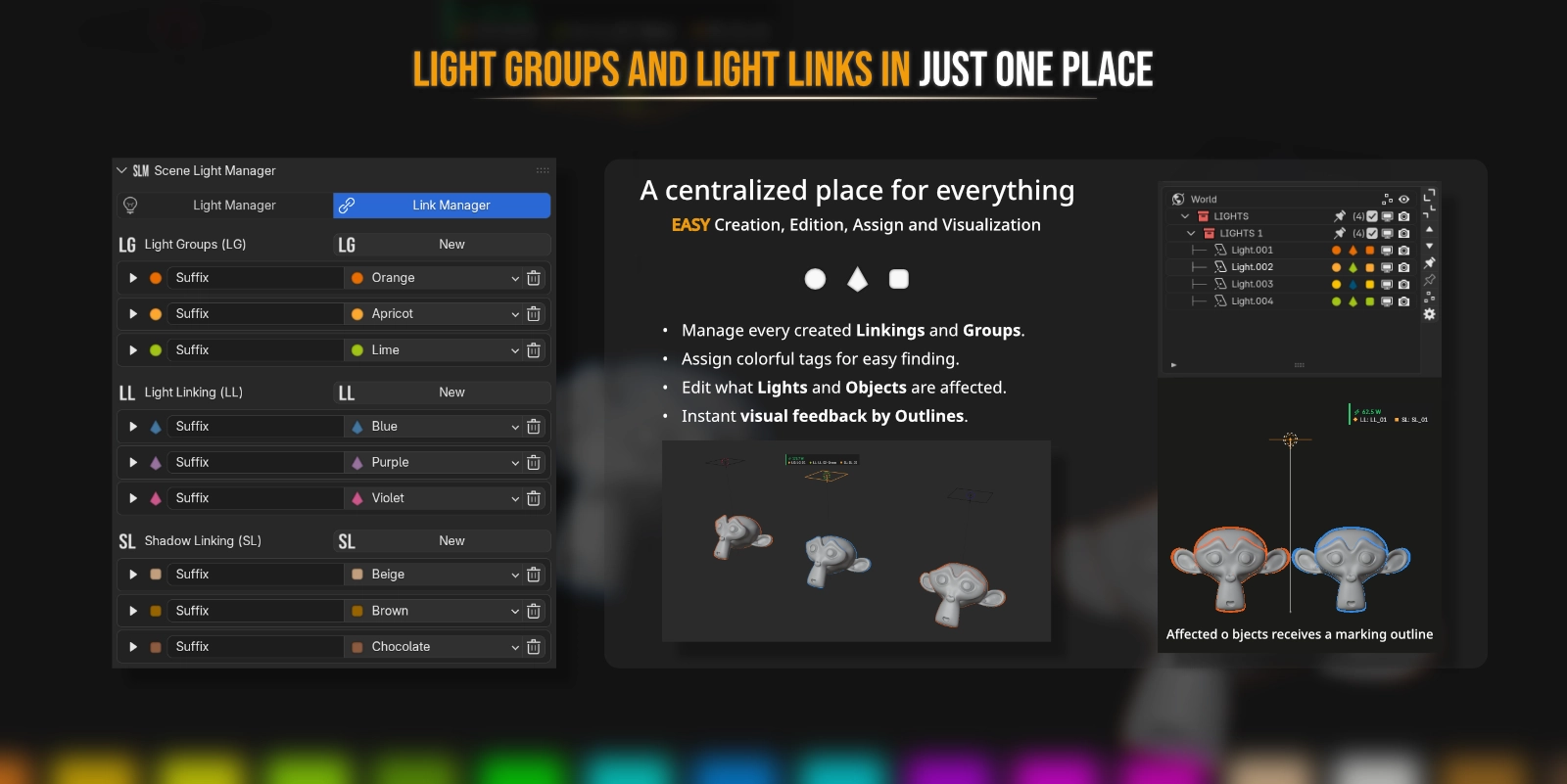
High-fidelity GPU outlines highlight exactly which objects are affected by light or shadow linking in real time.
Rotate your HDRI or position the Nishita sun texture with simple viewport gestures.
Built from the ground up for heavy production scenes with zero overhead.
Key Features
Engineered for technical lighting pipelines, providing professional UI tools and precise feedback controls.
Viewport Gizmo Interface & Floating Overlay
Gain instant, contextual access to light settings directly on the active light:
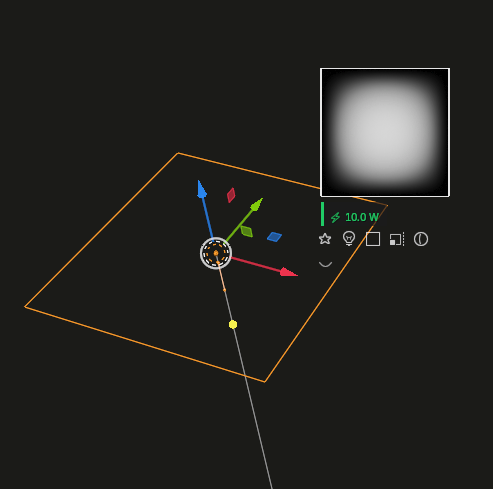
- Smart Buttons: Click interactive icons next to your selected light to cycle types, change area shapes, toggle solo mode, adjust spot beam spreads, or tweak sizes.
- Real-Time Value Overlay: Get beautiful, color-coded HUD feedback showing your precise parameter values as you drag. Choose to lock the HUD to your mouse or snap it cleanly below the gizmo cluster.
- Alt-Modifier Batch Control: Hold
Altwhile adjusting a viewport gizmo to propagate the change to all selected lights instantly.
High-Fidelity GPU Linking Highlights
Configure Blender’s powerful Light and Shadow Linking systems visually:
- Visual Silhouette Outlines: Selecting any light instantly projects clean, anti-aliased wireframes and silhouette highlights over the linked receiver or blocker geometry.
- Dynamic Customization: Choose from three outline modes (Silhouette, Wireframe, or Both), and customize line thickness and colors to match your scene style.
Interactive HDRI & Sky Rotation
Ditch the shader editor mapping node. Rotate your environment from any camera angle:
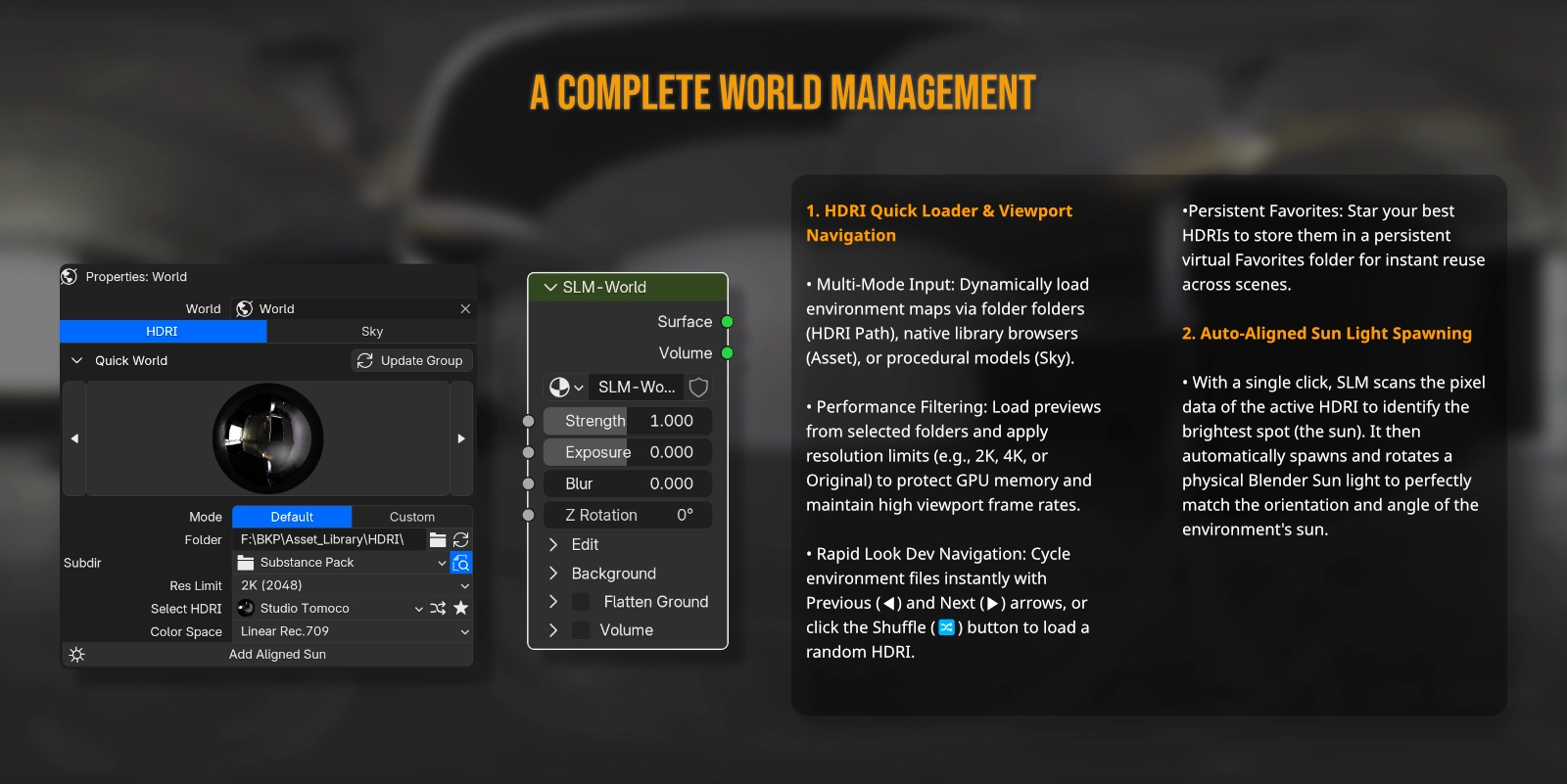
- Auto-Detection Engine: Automatically detects and rotates the active background environment—whether it is Nishita Sky, a World Mapping node (Z Rotation), or Blender's built-in Viewport HDRI.
- Instant Drag Gesture: Hold
Ctrl + Alt + RMBand drag horizontally to spin the dome. Release to commit, or cancel with a right click. - HUD Angle Readout: A clean digital compass at the bottom of the viewport displays the exact rotation angle in real time.
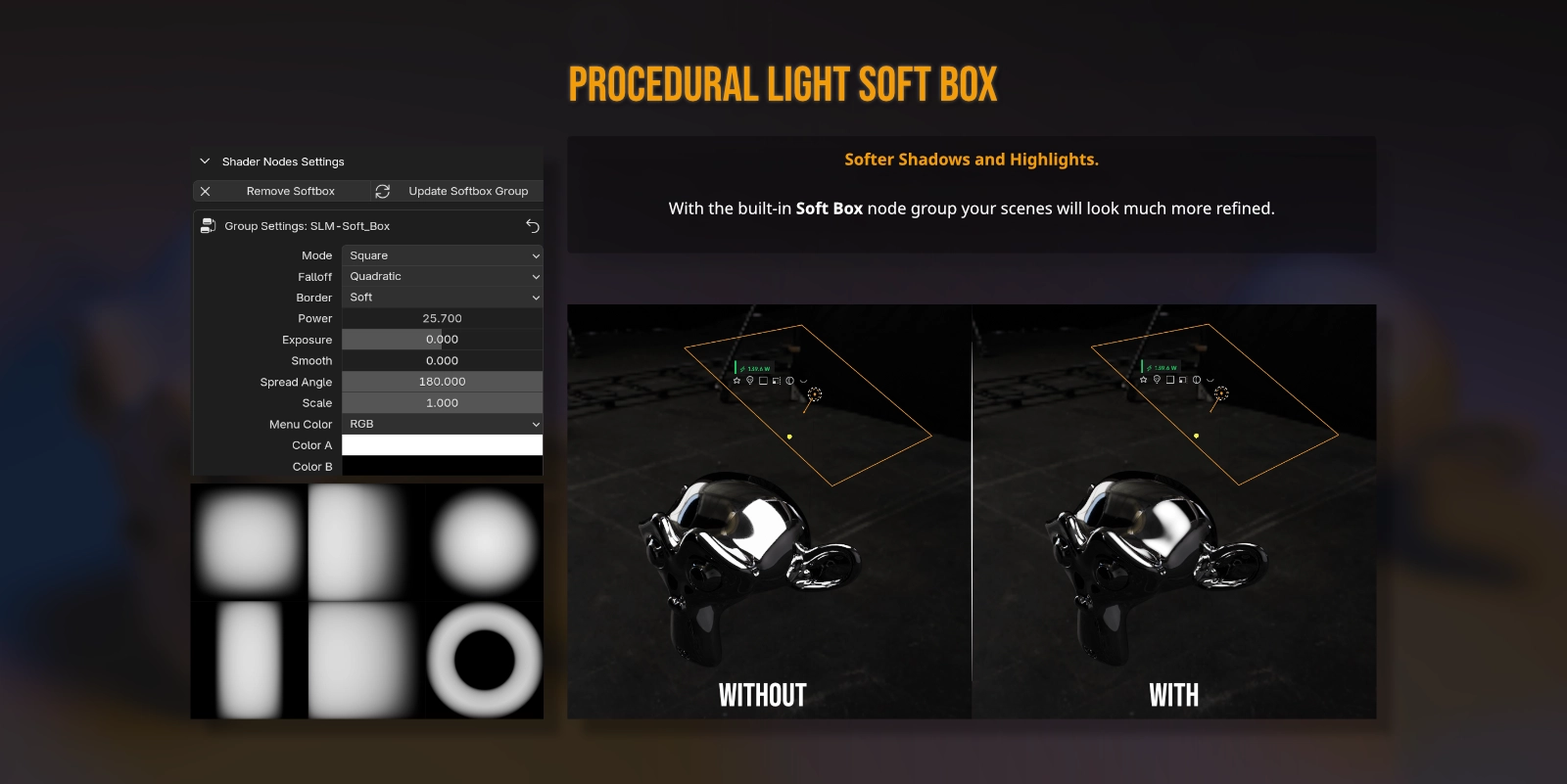
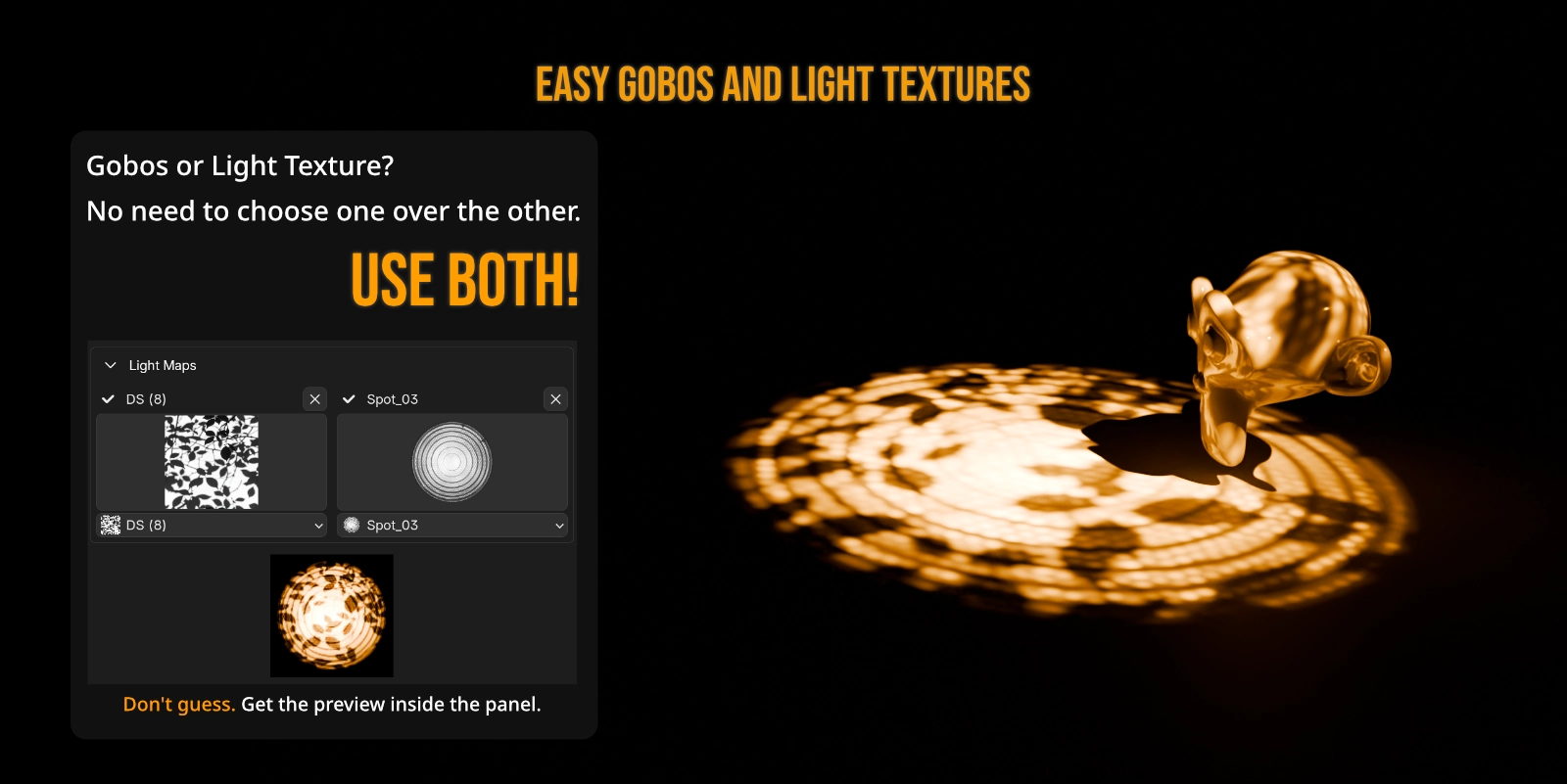
HDR Studio Light Textures & Gobos
Project real-world high-dynamic-range softboxes and patterns directly from Blender Area Lights:
- Photographic Realism: Map photographic softbox reflection textures and studio Gobos with a single click.
- Integrated Node Automation: Behind the scenes, SLM handles shader setups, texture mapping coordinate projections, and strength balance.
- Interactive Tweaks: Adjust Gobo rotation, scale, and softness directly from viewport operators.
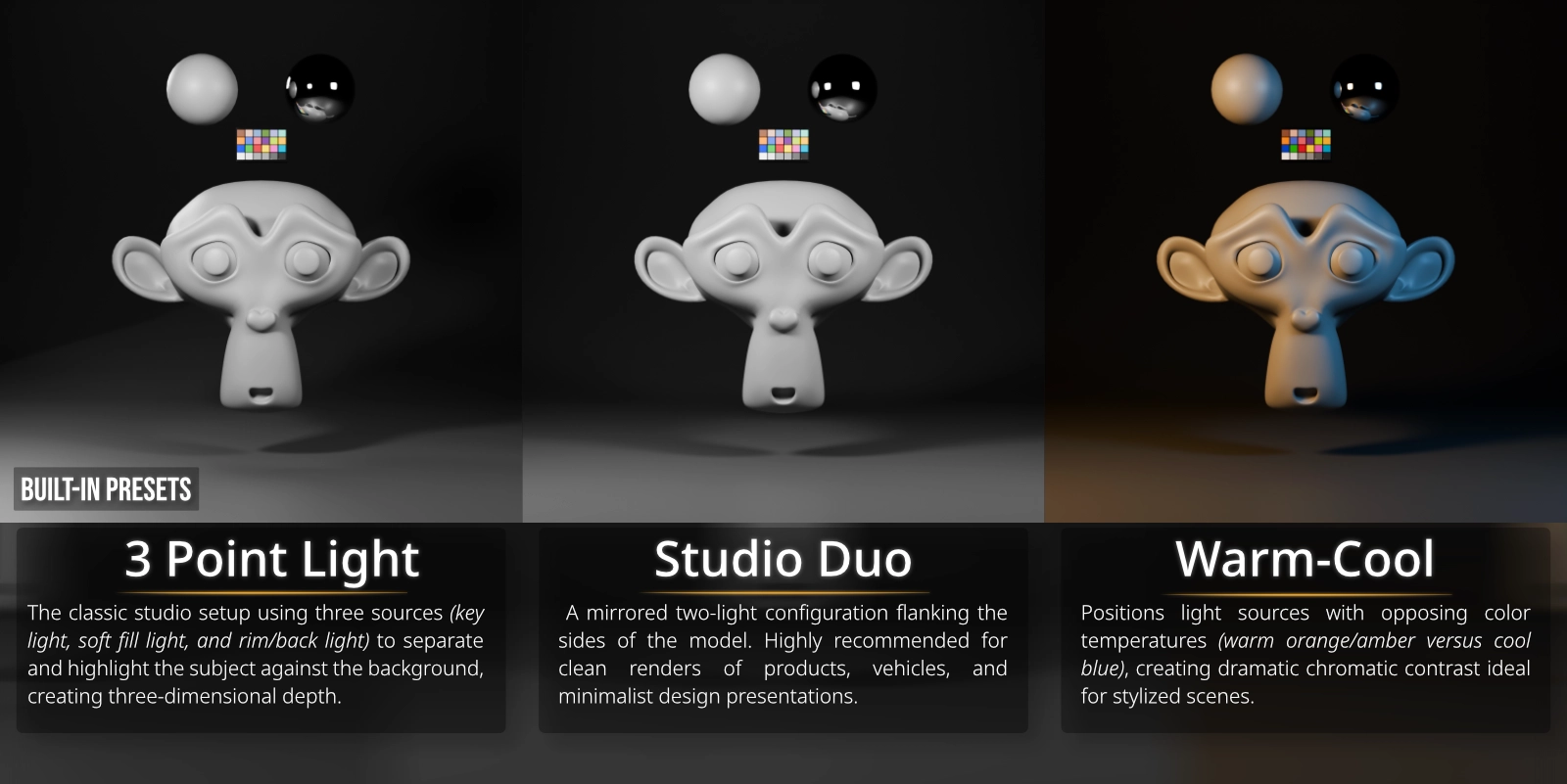
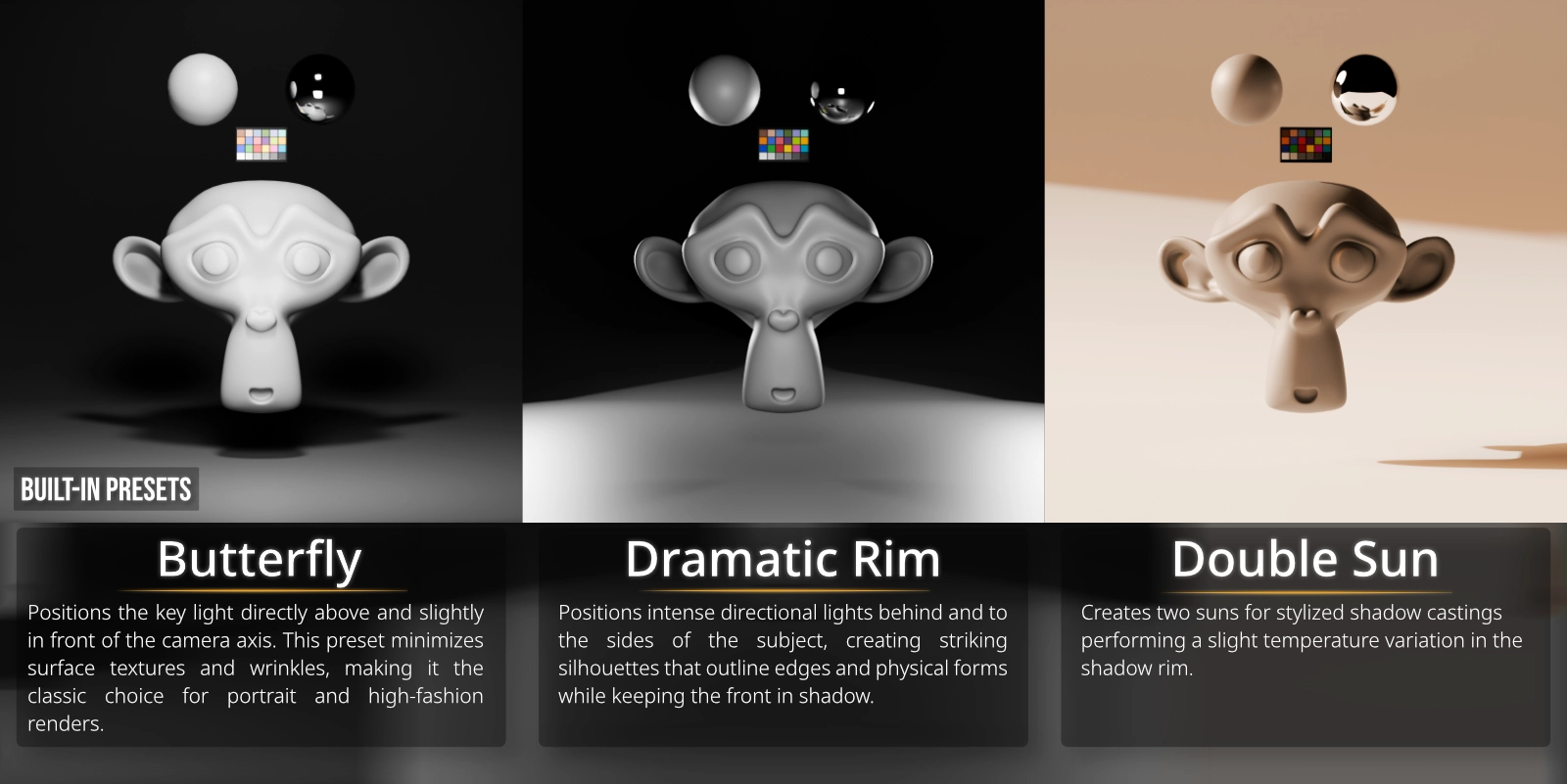
Cinematic Presets & Custom Lighting Rigs
Build master lighting setups in seconds using built-in rigs and saving custom presets:
- Instant Rig Spawning: Spawn standard 3-point rigs, butterfly setups, or backlighting rings aligned to your active viewport camera.
- Preset Library Manager: Save complete scene lighting states to the global asset library and restore them instantly.
- Non-Destructive Mixing: Test different lighting directions, colors, and intensities by saving snapshots as presets.
Smart Light Isolation (Solo Mode)
Isolate a single light source to judge its contribution, shadows, and bounce:
- Synchronized Soloing: Solo any light via the viewport gizmo button or the sidebar list.
- Automatic Restores: Un-soloing returns your scene to the exact previous visibility layout.
- World Muting Option: Automatically disable the World background shader while soloing to isolate light color contributions in pure darkness.
Unified Light Manager Sidebar
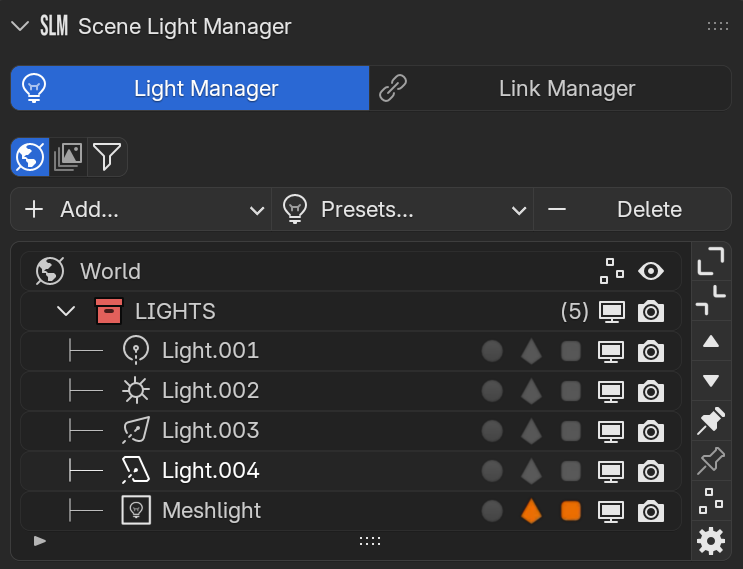
A beautiful, tabbed panel consolidating every light source, emissive mesh, and setting in your project:
- Properties Tab: Grouped list control over name, power, color, and visibility of all scene lights.
- Synchronization Tab: Seamlessly synchronize viewport selections, automatically activate collections, or sync visibility parameters.
- Light List Tab: Customize which property columns are visible (including icons for Light Groups, Light Linking, Shadow Linking, and Exposure Overrides).
- Mesh Emitters Detection: Automatically
scan and list mesh objects acting as lights via emissive shaders (using
configurable search terms like
led,emit,glow).
Geographic Sun & Sky Positioning
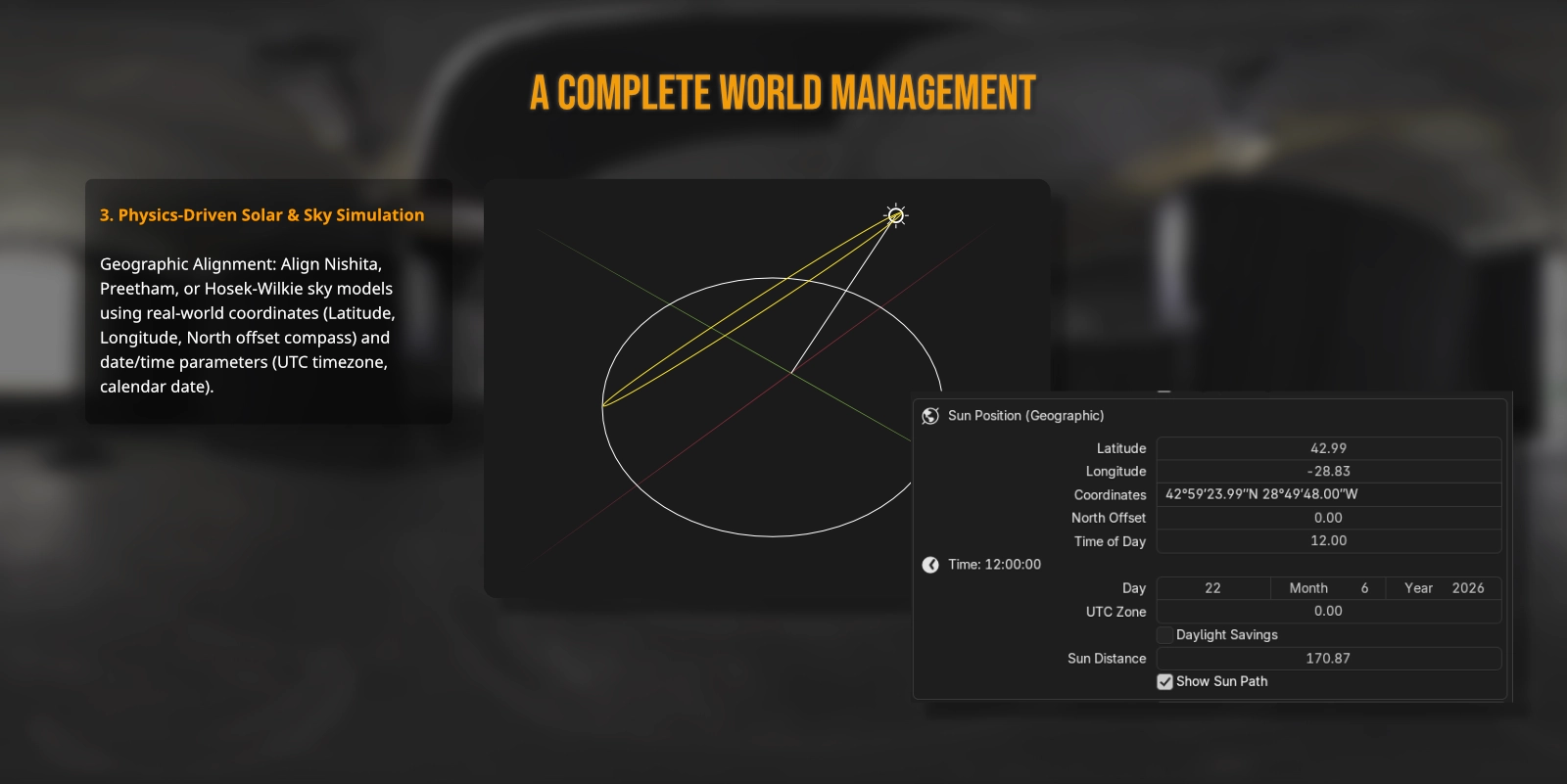
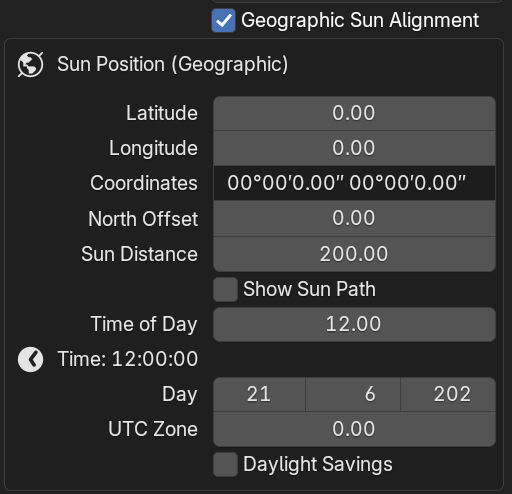
Align your Nishita sky or solar directional lights using real-world geographic coordinates:
- Latitude/Longitude Inputs: Enter
standard coordinates in Decimal format or degrees/minutes/seconds (e.g.,
48°51'30.2"N 02°17'40.2"E). - 3D Solar Path Overlay: Projects a beautiful daily solar path arc and cardinal direction compass (North-South, East-West) inside the 3D viewport.
Viewport Control & Shortcuts
Quickly navigate operators and modal modes directly within the Blender scene viewport.
■ Global Hotkeys
| Action | Shortcut | Description |
|---|---|---|
| Quick Popup | Y | Open the Scene Light Manager quick settings popup under the cursor. |
| Interactive HDRI Rotation | Ctrl + Alt + RMB | Hold and drag horizontally in the viewport to spin the background environment. |
■ Modal Adjustment Mode
| Key | Action Description |
|---|---|
| Hold Shift | Scales down mouse sensitivity for ultra-precise value tuning. |
| LMB / Enter | Confirms value changes and exits interactive adjustment mode. |
| RMB / Esc | Cancels active adjustments and reverts lights to their original values. |
Modular Preferences
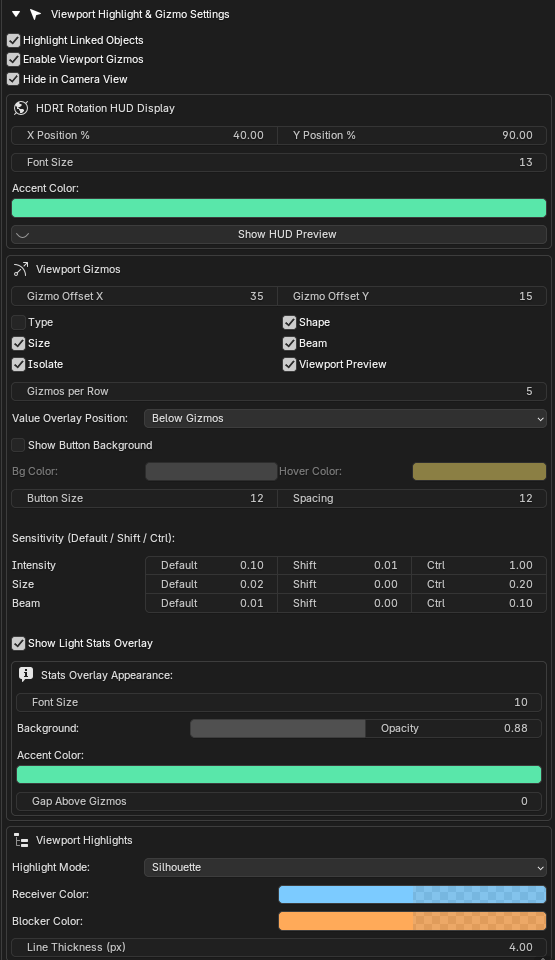
Tailor every detail of the interface to match your personal pipeline inside Edit > Preferences > Add-ons > K-tools: Scene Light Manager:
- Customize Gizmos: Choose which buttons (Type, Shape, Size, Beam, Isolate) are visible in the viewport clusters.
- Clean Tabs Grid: Choose between a grid or column layout for the preference panels to keep them organized.
- Custom Emissive Keywords: Add your own terms to scan materials and automatically detect custom Mesh Lights.
Developed by Robert Kezives. For support, feedback, or feature requests, visit the Documentation Repository.