The Light Manager Interface
The Light Manager acts as the central command center of Scene Light Manager. It consolidates all active lights, mesh emitters, blockers, and world environments in your scene into a single, unified list. From here, you can drive values, control visibility, lock exposure metrics, and configure light groups without diving into the Outliner or property panels.
1. Main Mode Switcher
At the top of the Scene Light Manager panel, you can toggle between two core management modes:
| Mode | Icon | Description |
|---|---|---|
| Light Manager |  | Standard list mode for managing your lights, environment (World), collection hierarchies, helper objects, and direct properties. |
| Link Manager |  | Dedicated overview panel to manage relationship overrides: Light Groups (LG), Light Linking (LL), and Shadow Linking (SL) at a global level. |
2. Toolbar Row 1: Visibility & Filters
Just below the mode switcher, you'll find visibility controls and a quick-filter system to isolate specific assets:
Toggle whether visibility changes affect the global scene settings (GLOBAL) or are limited to the active view layer (VIEW_LAYER).
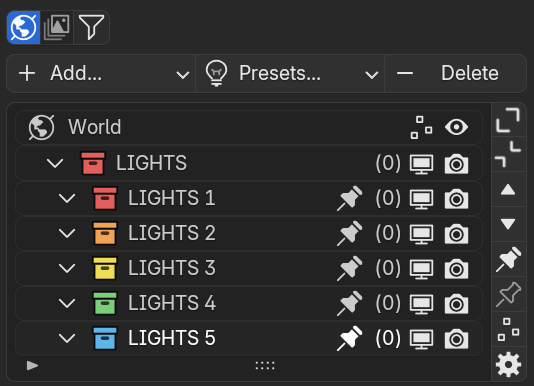
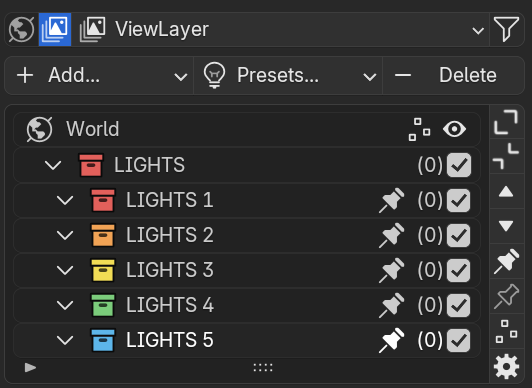
 Filter Toggle (FILTER)
 Opens/closes the advanced search and filtering foldout panel to quickly refine active list components.
Advanced Filters Foldout
When the filter panel is toggled open, the following options are available:
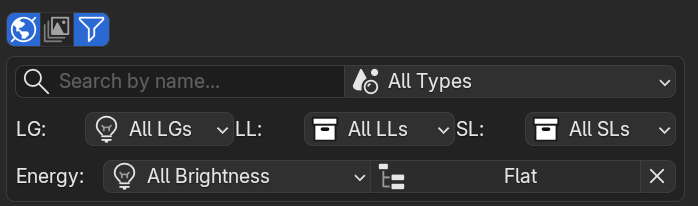
 Search Bar
 Search and filter elements in the list by name. Clear the search instantly with the X button.
Filter items by their light category (Point, Sun, Spot, Area, Bouncer, Blocker, Mesh Light, Catcher, HDRI Sphere).
 Flat List
 Flatten the collection hierarchy. Shows all objects as a single list, hiding parent collection folders.
Filter elements based on whether they belong to a specific Light Group (LG), Light Linking collection (LL), or Shadow Linking collection (SL).
3. Toolbar Row 2: Creation & Rigs
This row contains the creation tools, parametric rigs, and deletion operators.
 The Add Menu (
+ Add...)
Allows spawning custom lights, calibrated rigs, and special studio tools directly at the 3D cursor:
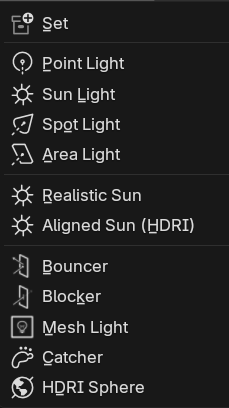
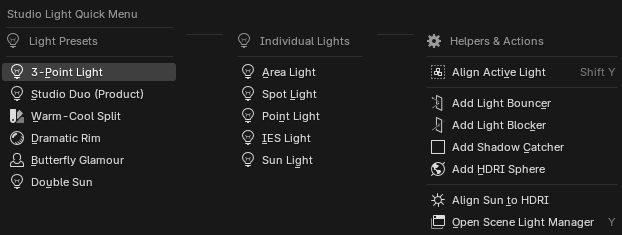
 Set Creation
 Creates a new pre-structured light group collection containing default area and point light configurations.
Standard Lights -
 Point Light — Omni
 - IES Light — Calibrated
-
 Sun Light — Parallel
 -
 Spot Light — Conical
 -
 Area Light — Surface
 Special Lights
 - Realistic Sun: Geo-coordinated sun/sky cycle.
- Aligned Sun: Sun tracking via HDRI mapping.
 Helper Objects
 -
 Bouncer — Reflector card
 -
 Blocker — Dark black flag
 -
 Mesh Light — Emissive plane
 -
 Catcher — Shadow catcher
 - HDRI Sphere — Preview sphere
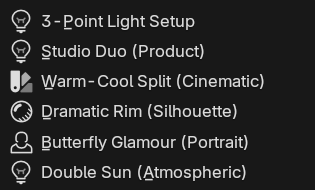
The Presets Menu (Presets...)
Spawns parametric studio lighting setups pre-parented to controller empties with unified controls:


Instantly removes the selected light object, helper object, or entire active collection hierarchies.
4. Right Sidebar Actions (UI List Column)
To the right of the main UI list is a vertical toolbar containing quick actions:
| Action | Icon | Description |
|---|---|---|
| Expand Tree |  | Recursively expands all collection levels in the list. |
| Collapse Tree |  | Recursively collapses all collection levels in the list. |
| Select Previous |  | Selects the previous light or collection in the list index stack. |
| Select Next |  | Selects the next light or collection in the list index stack. |
| Pin Collection |  | Pins the selected collection so its visibility is locked against global modifications. |
| Unpin Collection |  | Unpins the selected collection. |
| Solo / Isolate Mode |  / /  | Turns off all other light sources to isolate the selected emitter/collection. Turns red (alert mode) when active. |
| Options Popover |  | Opens the List Display Options popover panel. |
5. List Display Options Popover
Clicking the Gear icon ( ) opens a settings panel divided into two sections:
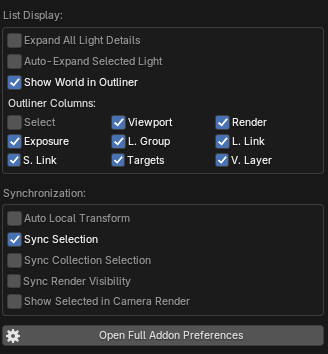 A. List Display
 - Expand All Light Details: Forces all lights to display their target, power, and color sliders inline.
- Auto Expand Active Light: Only shows inline sliders for the currently selected light.
- Show World in List: Toggles the visibility of the top-level World row.
- Outliner Columns: Show/hide columns (Select, Viewport, Render, Exposure, L. Group, L. Link, S. Link, Targets, V. Layer).
 B. Synchronization
 - Auto Local Transform: Toggles transform orientation to Local space upon selection.
- Sync Selection: Synchronizes viewport selection with the list, and vice versa.
- Sync Collection Selection: Selects all lights in viewport when their collection is selected.
- Sync Visibility Drivers: Syncs viewport visibility drivers when visibility properties change.
- Show Selected in Camera Render: Overrides render visibility for camera test renders.