Link Manager & Relationship Overrides
The Link Manager is a dedicated top-level section of Scene Light Manager. It coordinates Blender's advanced relationship configurations: Light Linking, Shadow Linking, multi-pass Light Groups, and Collection-Level overrides. By toggling the N-Panel mode selector to LINKS, you bypass native property editors, handling compositing tags and receiver groups directly next to each light.
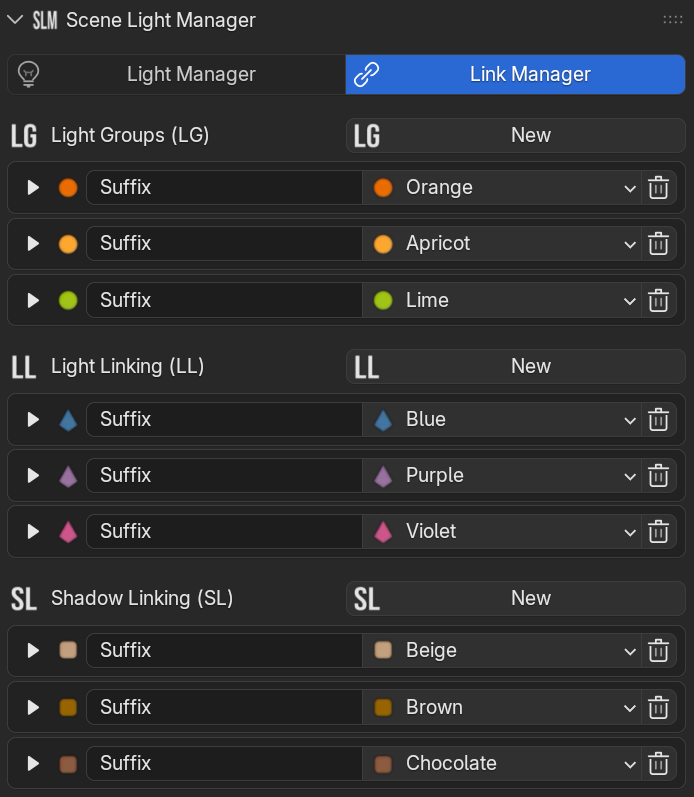
1. The Core Relationship Columns (LG, LL, SL)
The Link Manager displays three assigner icons on the right side of every light row:
 Light Group (LG)
 Cycles compositor routing tag. Directs the active light's output into a dedicated image pass during rendering.
Use Case: Separate key/fill passes in post Light Linking (LL)
 Illumination receiver control. Choose exactly which meshes or collections are affected by this specific light source.
Use Case: Add character rim highlight only Shadow Linking (SL)
 Shadow blocking override. Designate which meshes cast shadows or let rays pass through them invisibly.
Use Case: Remove ceiling/rig shadows2. Expanded Relationship Sub-panels
Clicking any of the relationship icons (LL, SL) in the list expands the selected item, revealing the inline relationship management sub-panel directly within the list row:
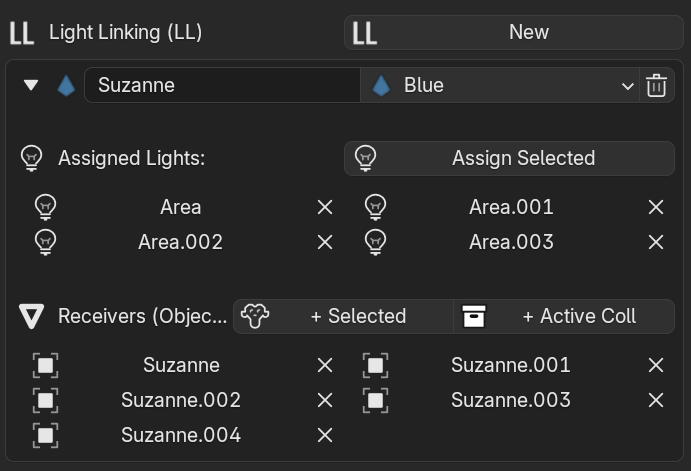
 Create & Link Collections
 Instantly create new receiver/blocker collections, name them, and add selected 3D viewport objects with a single click.
 Quick Selection Toggles
 Select all linked receiver objects in the 3D viewport directly from the expanded list row, or wipe relationships instantly using the clear (X) buttons.
3. Light Linking Deep-Dive
Light Linking allows artists to isolate the illumination contribution of a light to a specific subset of objects, ignoring others entirely.
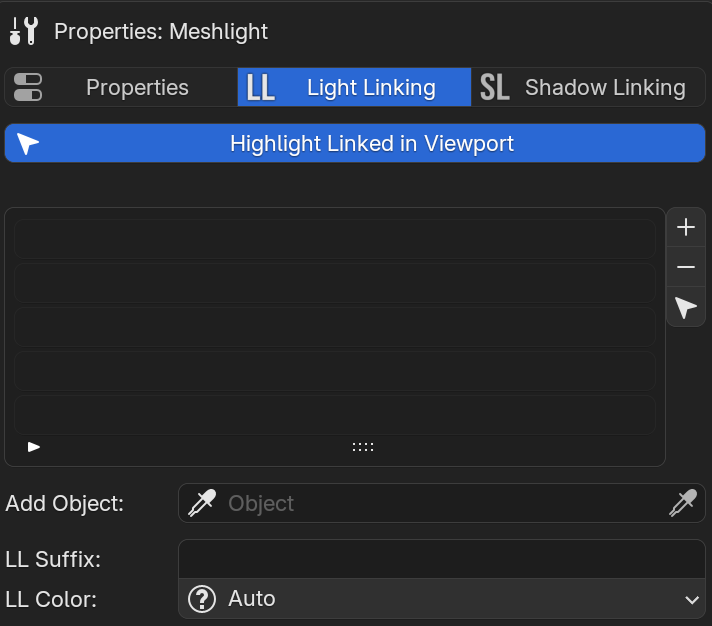
- Apply a sharp specular outline to a character's hair without washing out background elements.
- Illuminate products or packages without projecting bright pools on the tabletop base.
- Switch the N-Panel mode selector to LINKS.
- Select the target light from the list.
- Under Light Linking, create a receiver collection and click Link Objects to assign selected meshes.
[NOTE] Engine Support & Visualizers: Light Linking and Shadow Linking are supported in Cycles, and in newer Blender versions (4.2+), they are also fully compatible with EEVEE (EEVEE Next). Note that mesh lights (geometry emitters) still require the Cycles engine to render ray-traced emission. Enabling GPU Highlights in Preferences renders a clear, light-blue outline in the 3D viewport around all objects that are actively receiving illumination from the selected light.
Viewport highlight outlines showing objects linked to the active light source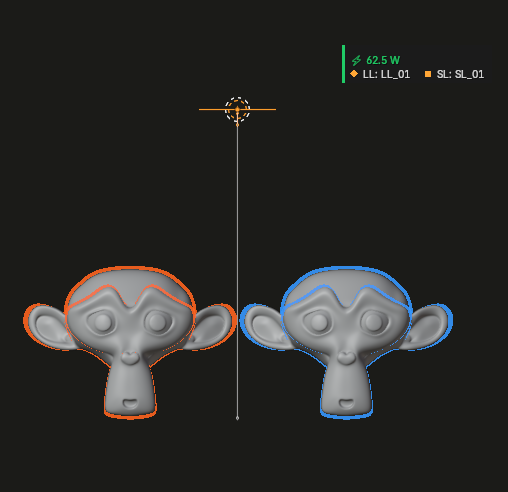
4. Shadow Linking Deep-Dive
Shadow Linking allows you to control which objects physically block light and cast shadows for a specific emitter.
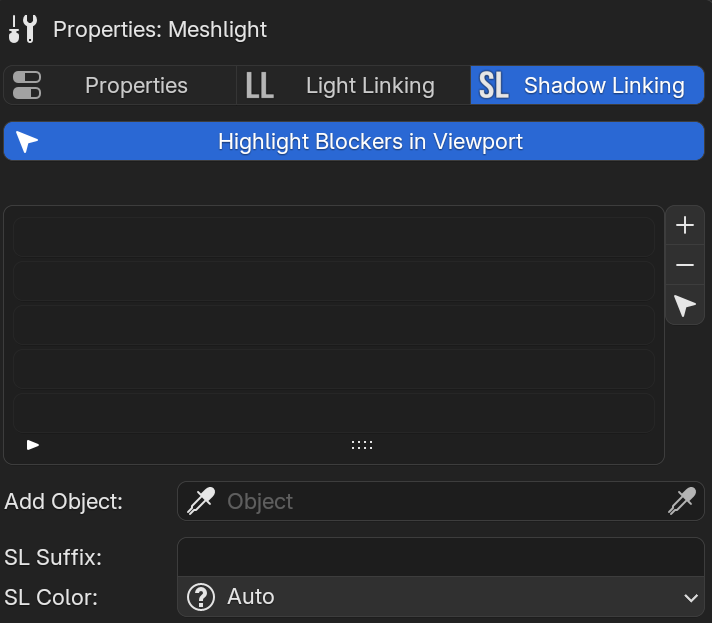
- Pass light rays cleanly through ceiling panels, window frames, or camera rigs without creating unwanted shadows.
- Selectively exclude specific props from casting blocky shadow silhouettes.
- Select the emitter in the LINKS panel.
- Under Shadow Linking, add or link a blocker collection.
- Light will pass through any unlisted scene meshes, casting shadows only from the explicitly assigned objects.
5. Light Groups Deep-Dive (Compositing)
Isolate light contributions during final rendering, outputting independent image passes for different lights (e.g., Key, Fill, Rim, Environmental) to tweak colors and intensities in post-production without re-rendering.
- Color Tagged Management: Create custom Light Groups directly in the SLM links interface and assign descriptive colors to visually categorize your lights in the outliner list.
- Instant Re-assignment: Quickly shift select multiple lights in the list and assign them to a specified Light Group using the gear actions popup.
6. Collection-Level Overrides & State Memory
Configure properties globally at the collection or rig level, applying rules to all nested lights automatically.
State Memory & Non-Destructive Actions
Before overriding properties, SLM automatically caches the original values (original exposure, light group, and linking target collections) inside custom attributes on each object data block.