Light Manager — World Properties
The World Properties section details settings and features available when the World environment background is selected in the Scene Light Manager. It details the active Quick HDRI Loader, procedural Sky simulations, and parameters inside the custom SLM-World shader node group.
1. The World Properties Panel Structure
When the World data-block or an HDRI Sphere is active, the properties editor exposes three specialized sub-panels:
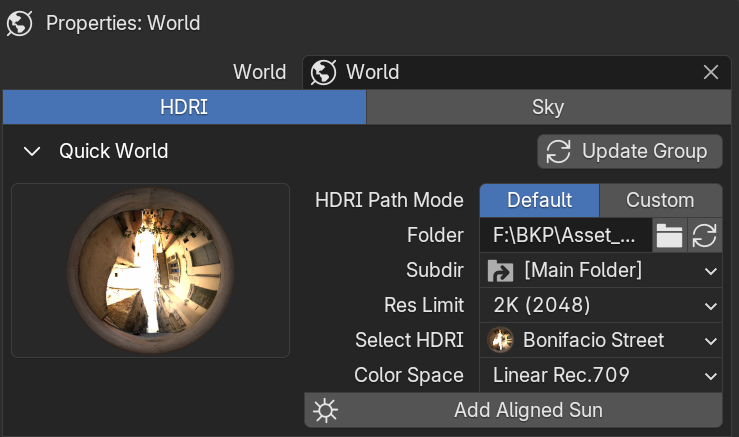
 A. Quick World / HDRI Quick Loader
Allows you to dynamically import and control environment maps (HDRIs) or procedural skies:
Switch input modes between HDRI (Path) to import from folders, Asset to browse native libraries, or Sky for solar models.
Instantly hooks the active World setup into the custom SLM-World shader nodes, or synchronizes/updates group node trees from external asset libraries.
Scan and load visual previews from selected folders. Apply memory boundaries (e.g., 2K, 4K, or Original) to optimize viewport speed.
Scans the brightest spot (sun coordinate) on the active HDRI, automatically spawning and aligning a Sun light to match the environment angle.
 B. Sky Texture Settings (Sky Mode Only)
Configures physics-driven sky modeling when rendering procedurally:
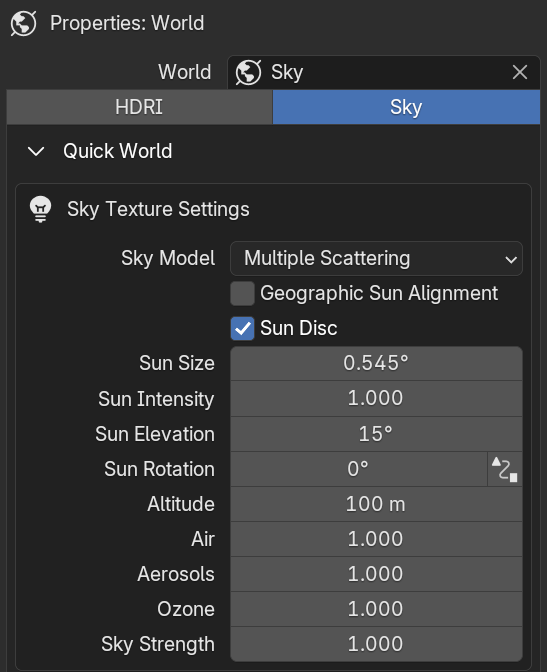
Drive solar angles using physical coordinates: Latitude, Longitude, Sun North compass offset, calendar Day/Month/Year, and local UTC timezone offsets.
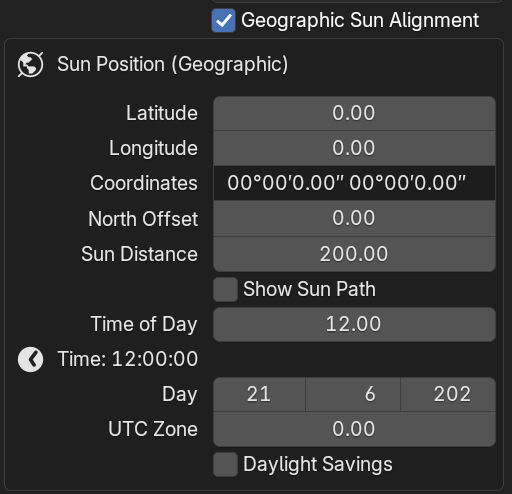
Select between Nishita, Preetham, or Hosek-Wilkie algorithms. Tweak Sun Intensity, Sun Size, Air/Aerosol/Ozone densities, Ground Albedo, and Turbidity.
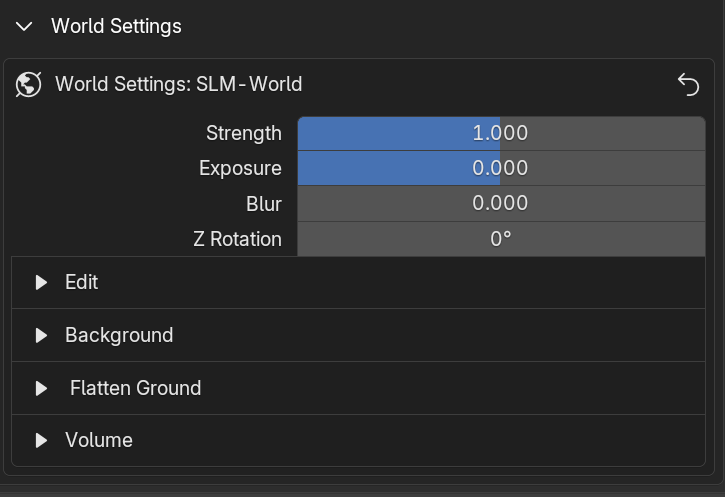
 C. World Settings
Displays the core Surface shading configuration. When SLM-World is active, it directly exposes the custom node group parameters. When not using nodes, it falls back to standard Surface and Volume socket blocks.
2. HDRI Favorites & Navigation
Scene Light Manager provides advanced workflow tools to quickly browse, favorite, and randomize your environment HDRIs:
A. Virtual Favorites Folder
When you mark an HDRI as a favorite, its file path is saved to a persistent hdri_favorites.json file inside Blender's user configuration folder.
In the Subdir Selection dropdown, you will see a virtual folder called Favorites (indicated by a star icon). Selecting it filters the list to show only your favorited HDRIs.


Next to the Select HDRI dropdown, you will find a Star Button:
- Favorite On ( ): Identifies that the currently loaded HDRI is already in your favorites list. Clicking it removes it.
- Favorite Off ( ): Indicates that the loaded HDRI is not favorited yet. Clicking it adds it to your favorites.
 C. Random HDRI Selection
 Next to the navigation controls, there is a Randomize Button (indicated by the shuffle icon 🔀). Clicking it picks and loads a random HDRI from the active folder or virtual category, allowing for rapid look development.
Next to the select dropdown, there are Previous (◀) and Next (▶) arrows. Click these arrows to instantly cycle to the next or previous HDRI file in the active folder, making viewport-based lighting audits extremely fast.
3. The Custom SLM-World Node Group
The SLM-World node group processes environment textures, offering advanced color correction, projection flattening, and integrated volumetric fog controls:
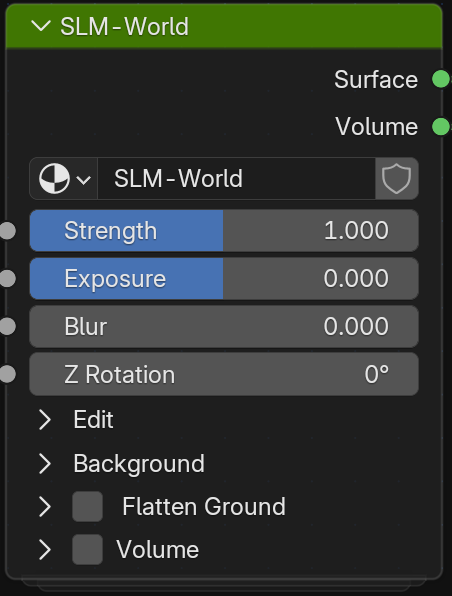 Main Root-Level Sockets
 - Surface: Shader Output connection socket to the World Surface.
- Volume: Shader Output connection socket to the World Volume (Atmosphere).
- Strength: Overall environment intensity multiplier (Default:
1.0). - Exposure: Photographic stop exposure offset (Default:
0.0). - Blur: Blurs the environment texture (ideal for creating abstract, soft background colors).
- Z Rotation: Rotates the HDRI sphere horizontally (0° to 360°).
 Edit Panel (Color Correction)
 - Black & White: Desaturates the environment texture (0.0 to 1.0).
- Gamma, Bright, Contrast: Adjust core contrast and luminance.
- Hue, Saturation, Color Value: Grading adjustments for artistic overrides.
- Use Temperature & Kelvin: Enable color temperature adjustments.
- Color Overlay: Toggles custom color overlays with RGB color slots.
 Secondary World Control Panels
 Background
 Display a custom gradient vignette behind the model while keeping HDRI lighting:
- Background Toggle: Switch between
HDRIandCustom Color. - Vignette: Inner/Outer Color, Scale, and bias offsets.
- Sync: Follow HDRI strength and independent visible strength.
 Flatten Ground
 Projects the bottom half of the HDRI onto a flat ground plane to prevent floating models:
- Flatten Ground: Toggles ground flattening projection.
- Size: Adjust projected floor size.
- Offset: Vector offsets for floor alignment.
 Volume (Fog)
 Sets up a global volumetric fog environment for depth atmospheric scattering:
- Volume Toggle: Enable global volumetric fog.
- Fog Color & Density: Fog thickness.
- Anisotropy: Forward vs. backward scattering values.